

IP Blockers – AdminBolt Hosting Panel
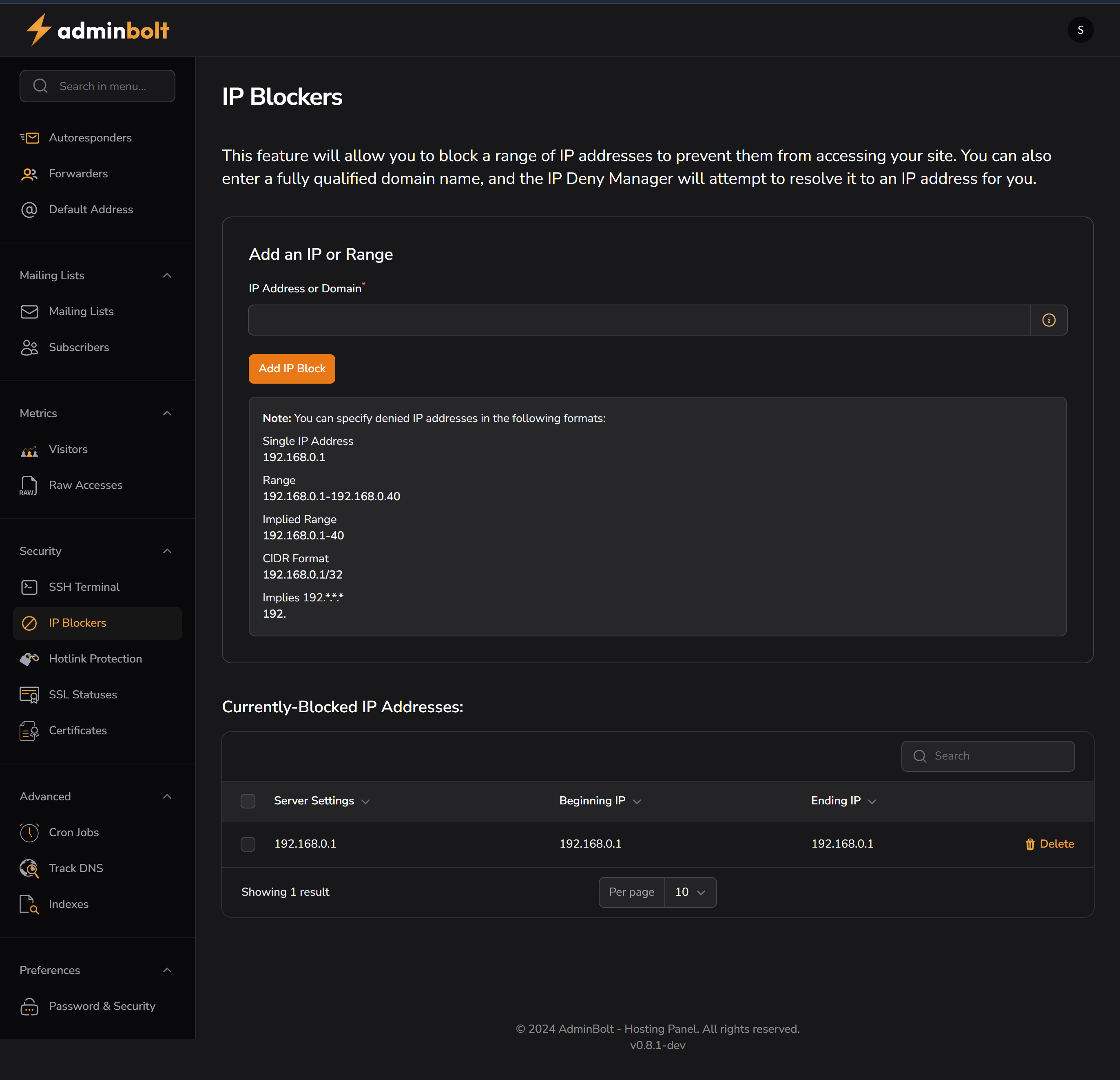
Overview
The IP Blockers feature enables you to restrict access to your website by blocking specific IP addresses or ranges. This is useful for preventing brute-force attacks, limiting access from malicious users, or enforcing geo-blocking rules.
Key Features
- Block single IPs, IP ranges (CIDR), or domain names
- Domain names are automatically resolved to IPs
- Real-time update of blocked list
- Search function for existing blocked entries
Interface Description
| Section | Description |
|---|---|
| IP Address or Domain Field | Input box where the admin enters a target IP address or domain |
| Add IP Block Button | Submits the entered IP or domain to the block list |
| Currently-Blocked IP Addresses | Displays a list of all blocked IPs with search capability |
| Empty State Indicator | Shows “No IP blockers” if no addresses are blocked |
How to Use
- Go to: Security → IP Blockers
- In the "Add an IP or Range" section, enter:
- A full IPv4/IPv6 address (e.g.,
192.168.1.1) - A subnet (e.g.,
192.168.1.0/24) - A domain (e.g.,
baduser.example.com)
- A full IPv4/IPv6 address (e.g.,
- Click Add IP Block
- The entry appears in the Currently-Blocked IP Addresses list
Use Cases
- DDoS Protection – Block suspicious IP ranges flooding your server
- Geo-restriction – Block regions based on IP
- Abuse Control – Stop brute-force or repeated failed login attempts
- Blacklist Known Bots – Deny access to scraping/spam bots
Security Notes
- IP blocks are enforced at the server level
- DNS lookups are performed for domain entries
- Admins should double-check accuracy to avoid false positives
Troubleshooting
If blocks are not working:
- Ensure firewall rules are not overriding panel settings
- Verify the domain resolves to a valid IP
- Refresh the interface after adding blocks