

Redirects – adminbolt Hosting Panel
Overview
The Redirects section in adminbolt allows you to make one domain redirect to another domain, either for a website or a specific web page. For example, you can create a redirect so that www.example.com automatically redirects users to www.example.net.
Purpose
- Point old or alternate URLs to the correct page.
- Enforce HTTPS or non-www by redirecting to a canonical URL.
- Preserve SEO when you change a page’s address by using 301 redirects.
Prerequisites
- A domain or subdomain configured under Domains in the panel.
- Access to the Redirects page (sidebar: Domains → Redirects).
Interface Description
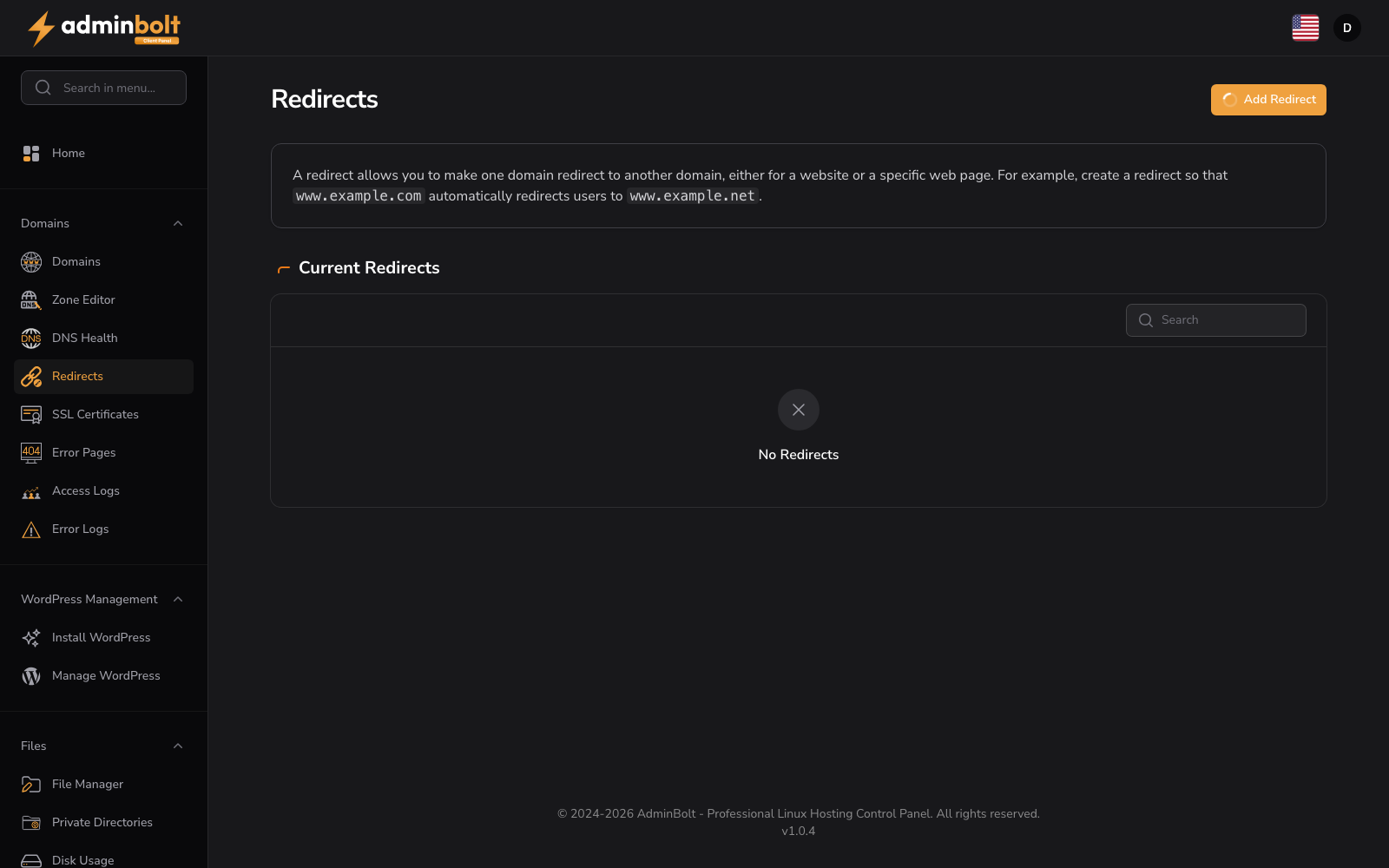
- Page heading: Redirects (h1 at the top of the main content).
- Intro text (below the heading): A redirect allows you to make one domain redirect to another domain, either for a website or a specific web page. For example, create a redirect so that www.example.com automatically redirects users to www.example.net.
- Add Redirect – Button at the top right. Opens the Creating New Redirect modal.
- Current Redirects – Section (h2) that lists all configured redirects, with a Search box above the list to filter by keyword.
- Empty state: When no redirects exist, the panel shows the message No Redirects with an icon.
When redirects are present, each row shows the source and destination and actions to edit or delete.
Add Redirect form (modal)
Clicking Add Redirect opens a modal titled Creating New Redirect. The modal has a Close button at the top. Fields (items marked with * are required):
| Field | Type | Description |
|---|---|---|
| Redirect Type* | Dropdown | First option: Select an option. Then Permanent (301) or Temporary (302). |
| Domain to Redirect* | Dropdown | First option: Select an option. Then the domains on your account (e.g. your domain or subdomain). |
| Path | Text box | A leading / is shown; type the path after it. Leave empty for the domain root, or enter e.g. old-page. |
| Select www prefix configuration* | Dropdown | Redirect with or without www (default), Only redirect with www, or Do Not Redirect www. |
| Redirects To* | Text box | Full destination URL. Placeholder: https://www.example.com/sample/path. Helper: Enter the URL you want to redirect to. |
| Wild Card Redirect | Checkbox | Label: Wild Card Redirect. When enabled: Redirect all files within a source path to the same filename in the target path. |
Buttons at the bottom: Submit, Cancel. Close at the top closes the modal without saving.
Step-by-step: Adding a redirect
- Open Domains → Redirects in the sidebar.
- Click Add Redirect.
- Choose Redirect Type: Permanent (301) or Temporary (302).
- Select Domain to Redirect (the source domain).
- Optionally enter a Path (e.g.
/old-page); leave empty for the whole domain. - Set Select www prefix configuration (how www is handled for the source).
- Enter the full destination URL in Redirects To.
- Optionally enable Wild Card Redirect if you want all files under the path to map to the same path on the target.
- Click Submit.
After saving, test the source URL in a browser to confirm it redirects to the destination.
Use cases
- Moving a page: After changing a URL, add a 301 redirect from the old path to the new one so search engines and bookmarks keep working.
- HTTPS: Redirect
http://example.comtohttps://example.com. - www vs non-www: Redirect
www.example.comtoexample.com(or the opposite), depending on your preferred canonical domain.
Related sections
Sidebar location
Domains → Redirects
Notes
- 301 redirects are cached by browsers and search engines; use them when the move is permanent.
- 302 is suitable for temporary moves or A/B tests.
- Too many or incorrect redirects can slow the site or create redirect chains; prefer one direct redirect per source URL when possible.