

Password & Security
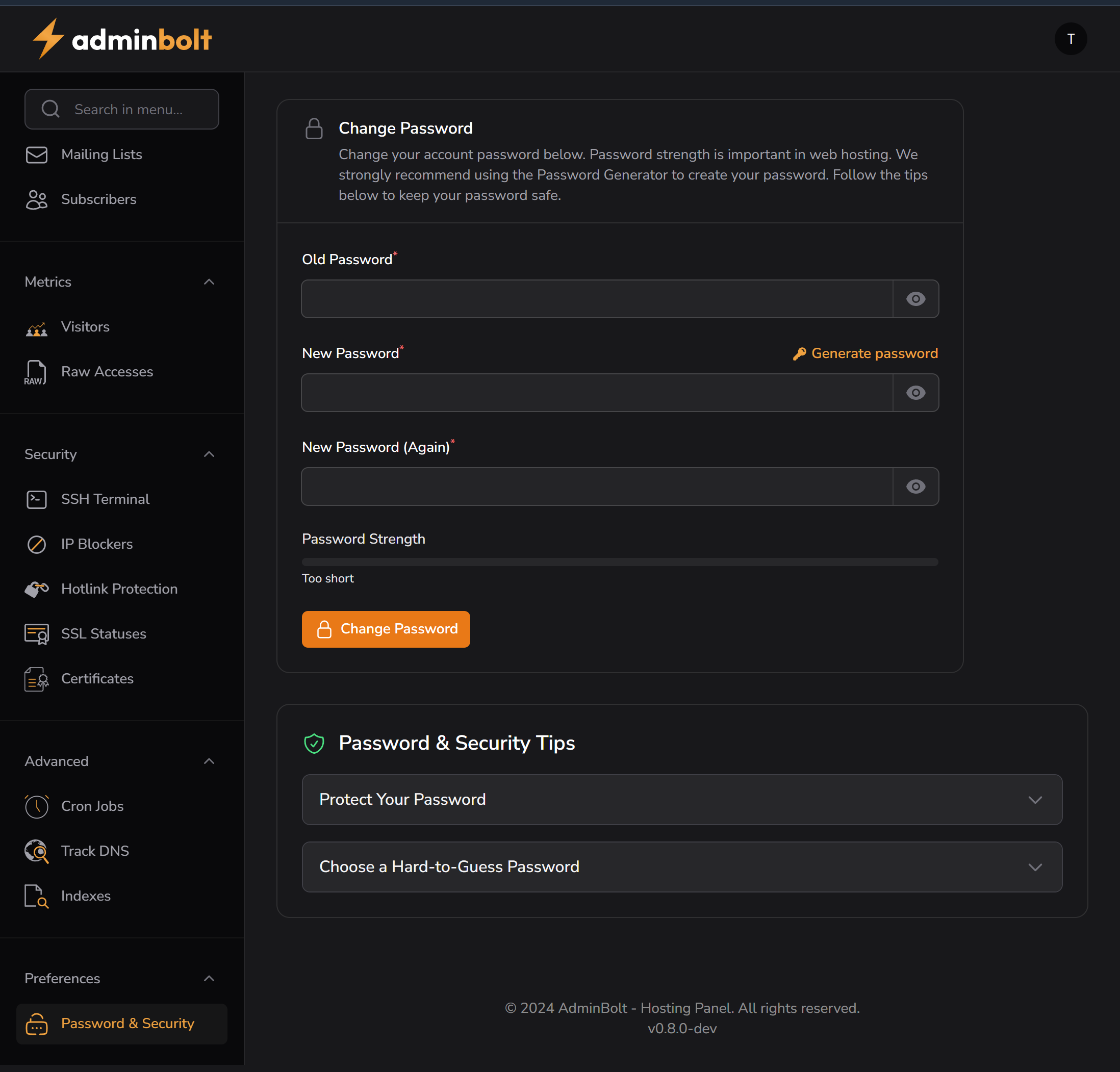
The Password & Security section allows users to securely change their account password. It includes built-in validation, strength indicators, and safety tips for creating strong, secure credentials in a web hosting environment.
Change Password
You are required to provide:
- Old Password – Your current password
- New Password – A secure password of your choice
- New Password (Again) – Confirmation of the new password
Features:
- Toggle visibility for all password fields
- One-click password generator
- Real-time password strength validation
If the password is too short or weak, the interface will show an alert like:
Too short
Click the Change Password button to apply the update.
Password & Security Tips
Two collapsible tips are provided to help you create stronger passwords:
Protect Your Password
- Never reuse passwords across platforms.
- Don’t share it with others.
- Use a password manager.
Choose a Hard-to-Guess Password
- Use a mix of letters, numbers, and symbols.
- Avoid using personal information like birth dates or names.
Path: Preferences > Password & Security
Version: AdminBolt v0.8.0-dev
Screenshot: public/screenshots/password-and-security.png