

DNS Templates
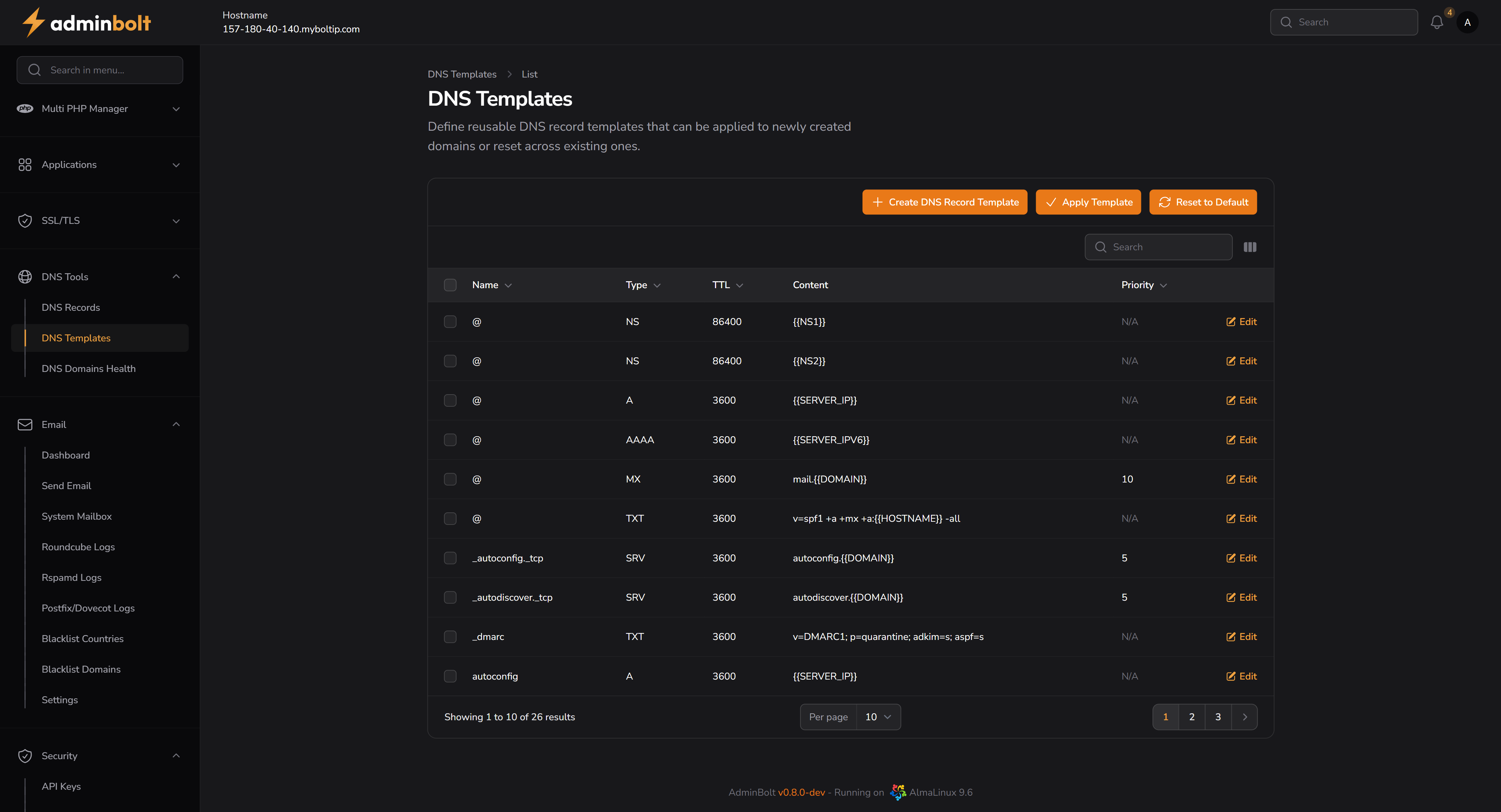
The DNS Templates page allows administrators to define reusable DNS record templates that can be applied to newly created domains or used to reset DNS settings across existing domains.
Overview
URL: /admin/dns-record-template
The interface provides a structured list of DNS record templates that include fields like:
- Name – The record name (e.g.,
@,_autoconfig_tcp) - Type – Record type (e.g.,
A,TXT,MX) - TTL – Time-to-live value (e.g.,
3600) - Content – Record content (e.g., IP address or template variables)
- Priority – Applicable for
MXandSRVrecords - Edit – Edit action to modify individual records
Pagination controls are available at the bottom of the list.
A search bar is provided in the top-right corner, allowing you to filter records by Name, Type, or Content.
Top Actions
At the top-right of the page, the following actions are available:
- Create DNS Record Template – Opens a form to define a new DNS record template
- Apply Template – Applies the current template to selected domains (this will overwrite existing DNS records)
- Reset to Default – Restores default DNS template settings
Template Records Table
Each row in the table represents a single DNS record with the following columns:
- Name
- Type
- TTL
- Content
- Priority
- Edit
You can toggle the visibility of extra columns using the column menu:
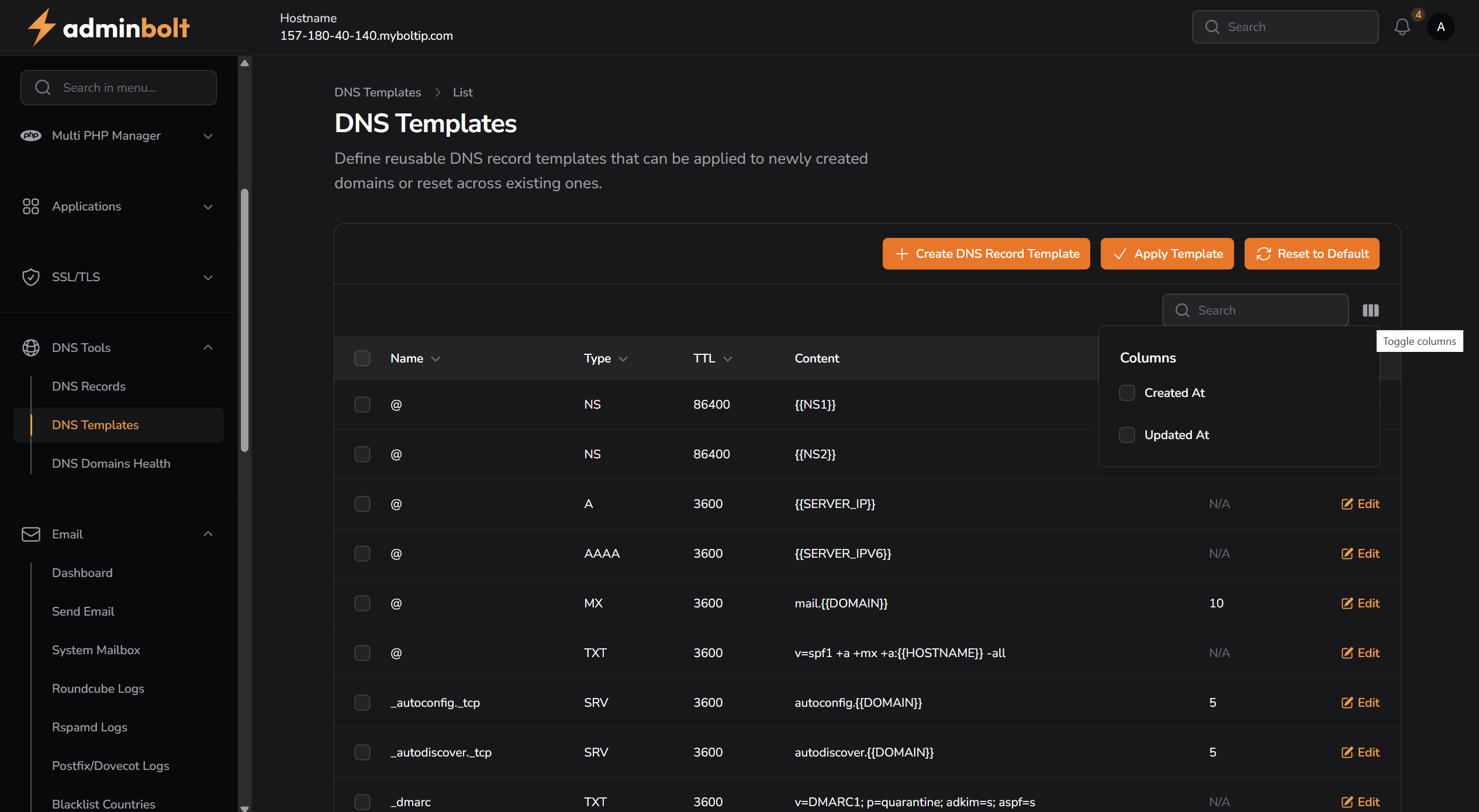
Available extra columns:
Created AtUpdated At
Creating a New DNS Template Record
Click the "Create DNS Record Template" button to open the creation modal.
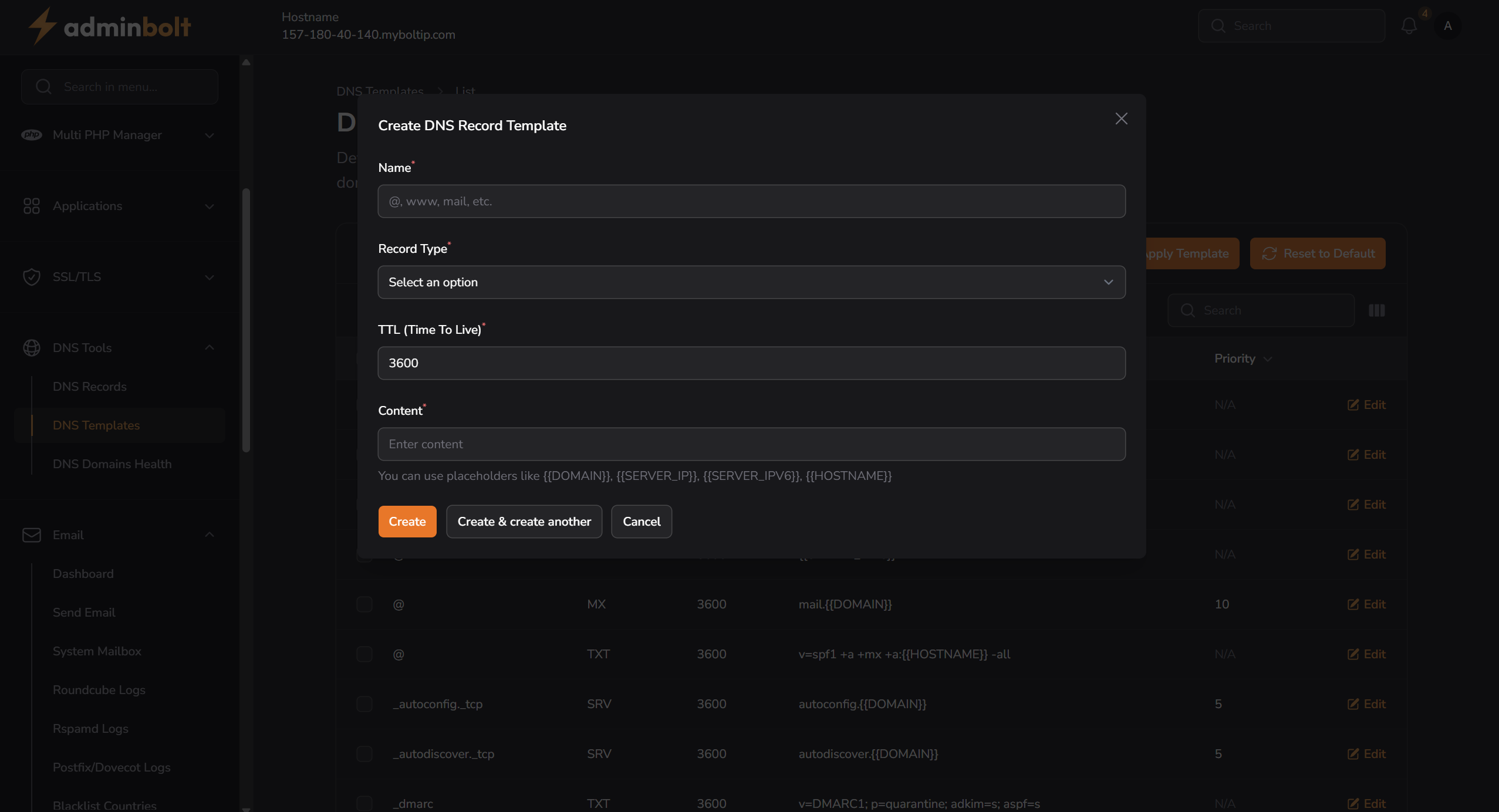
Fields:
Name – e.g.,
@,www,mail, etc.Record Type – Select the DNS record type from the dropdown:
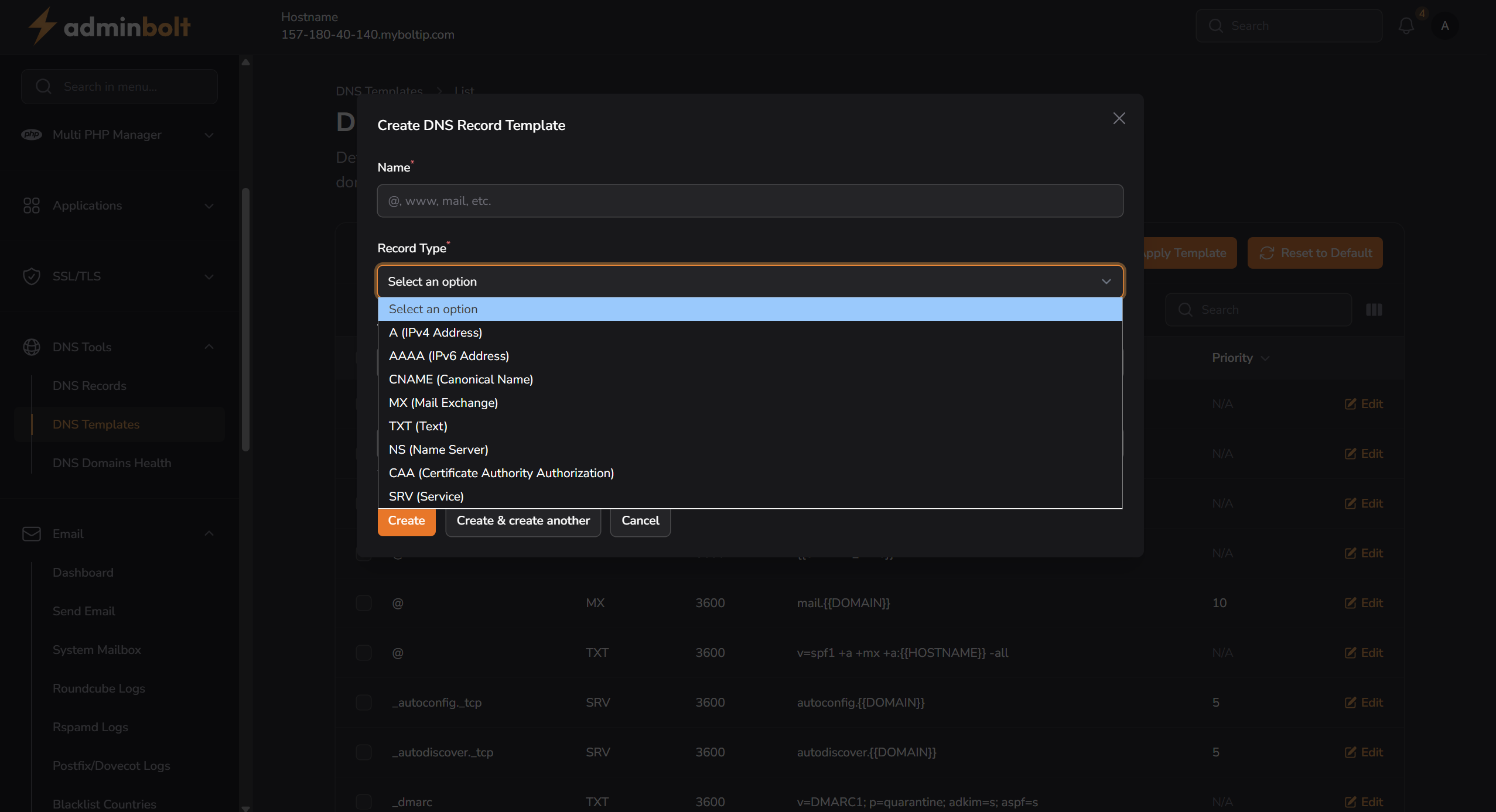
Supported types:
- A (IPv4 Address)
- AAAA (IPv6 Address)
- CNAME (Canonical Name)
- MX (Mail Exchange)
- TXT (Text)
- NS (Name Server)
- CAA (Certificate Authority Authorization)
- SRV (Service)
TTL (Time to Live) – Specify how long the record should be cached by resolvers (e.g.,
3600).Content – The record value.
There are two buttons to save the entry:
- Create – Save and close the modal.
- Create & create another – Save the current record and open a new empty form to add another one.
Editing a DNS Template Record
Click the Edit icon beside any record to open the edit modal.
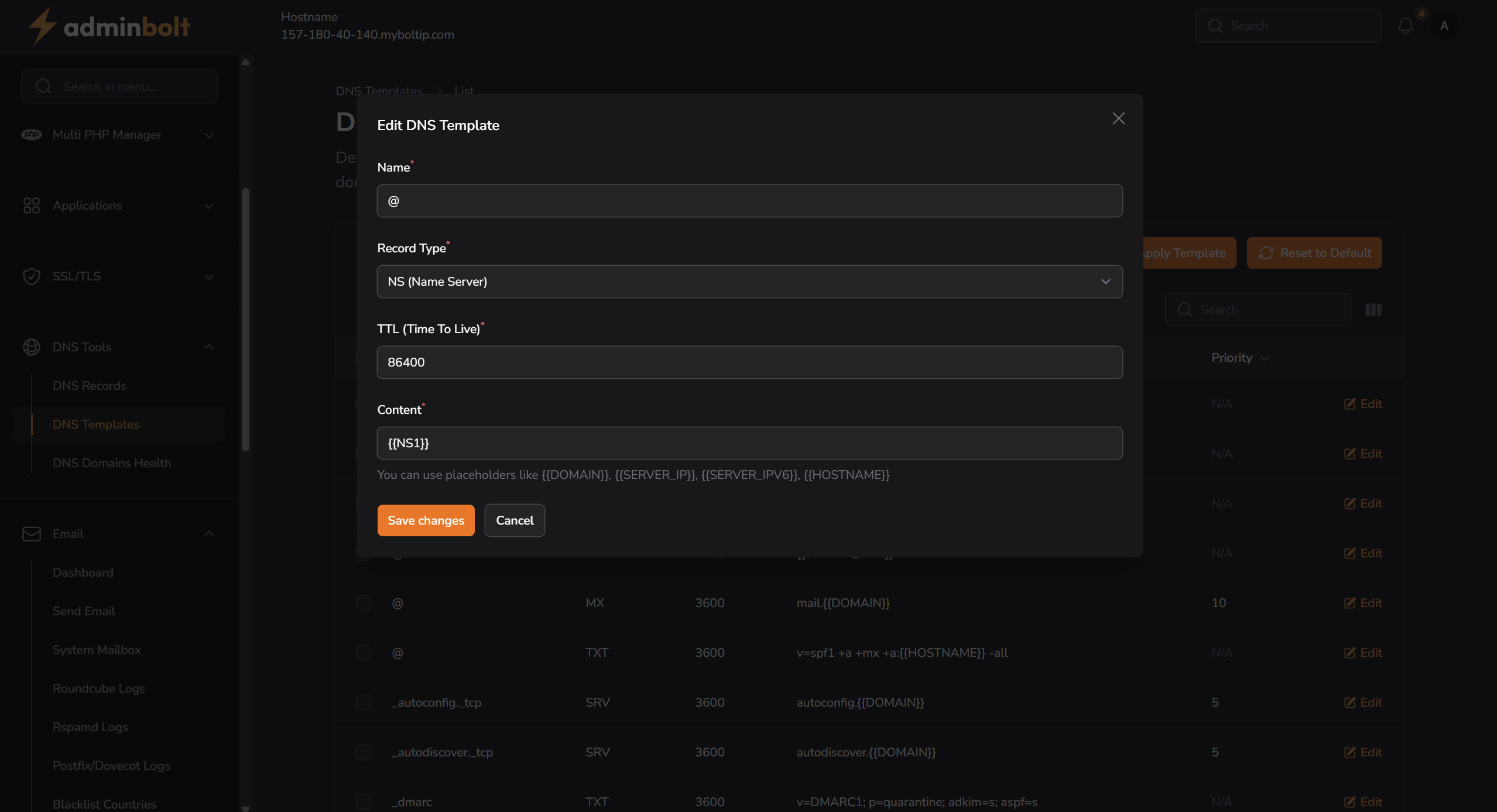
The same fields are available as in creation:
- Name
- Record Type
- TTL
- Content
Changes can be saved using the Save changes button, or cancelled with the Cancel button.