

System Updates
System Updates is where everything this server can install is checked, installed, and followed. It has one tab per set of packages, and each tab works the same way.
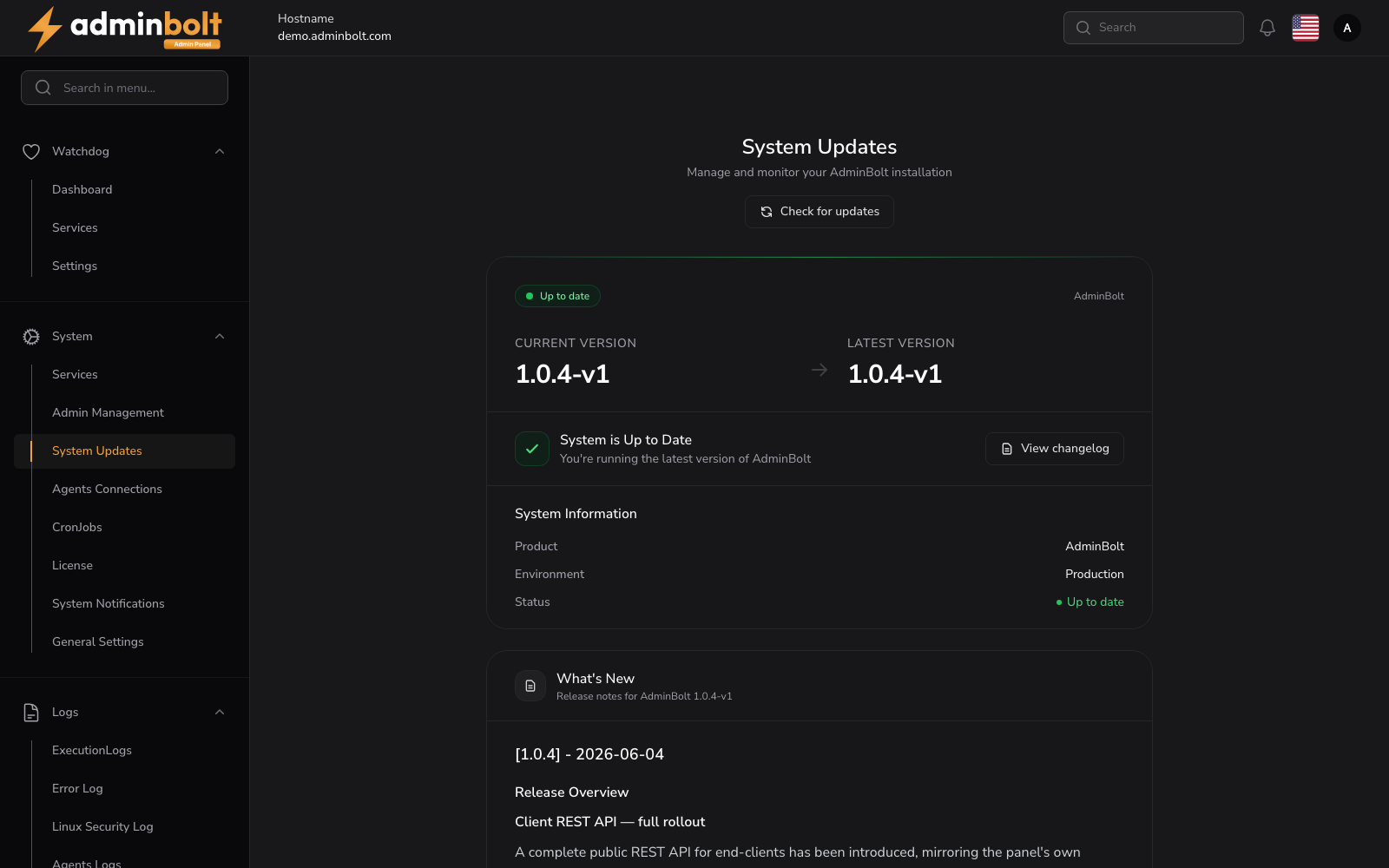
Overview
URL: /admin/settings/system-updates
Open it from Settings > System > System Updates in the sidebar. The page checks for updates as soon as it opens.
The tabs
| Tab | What it covers |
|---|---|
| Components | AdminBolt itself and every AdminBolt component installed on the server. |
| OS packages | The operating system's own packages, with security updates marked. |
| CloudLinux | The CloudLinux packages. Present on a converted server only. |
Each tab carries a count of what is outstanding behind it, so the page tells you where the work is before you open a tab. The OS packages count turns red when security updates are among the pending ones.
The page opens on Components, unless an operating system or CloudLinux update is running, in which case it opens on the tab that is busy.
The CloudLinux tab appears as soon as a server is converted. It stays visible even when the agent cannot be read at that moment, so a converted server never loses the screen that would explain why.
Every tab is built the same way
Each tab is laid out in the same order:
- A status line: Up to date, Update available, Update in progress, or Update failed.
- The Automatic updates switch for that package set.
- The counts: pending updates, and for the operating system also the security updates and whether a reboot is required.
- The package table.
- The action that installs.
Components
The AdminBolt components table lists every component with its Installed version, the Available version, and its Status.
System Information beside it holds the Product, the Environment, the Current version, the Latest version, and when that version was Released.
States:
- All components are up to date - nothing to do.
- Update available - the release notes appear inline, and Install update applies the update.
- Ahead of Latest - this server runs a build newer than the one its release channel offers, which happens on a pre-release build. The older build is not offered.
Actions:
- Check for updates - re-check the repository.
- Install update - install the available update.
- View changelog - open the Changelog.
OS packages
The Operating system packages tab lists what the distribution has pending: the Package, its Version, and the Repository it comes from. Above the table:
- Pending updates - how many packages are waiting.
- Security updates - how many of those are security updates.
- Reboot - Required to finish applying updates or Not required.
Actions:
- Check system updates - re-read the pending packages.
- Install system updates - install everything pending. You are asked to confirm.
- Install security updates - install the security subset only. You are asked to confirm.
The install runs with live progress and its log on the page. AdminBolt's own packages are never installed by this run: they belong to the Components tab.
The Needs attention card on the dashboard raises a warning when a reboot is due, and when security updates are pending.
After an install
Since panel 1.9.3, the tab reads the pending packages again on its own once an install of system or security updates has finished. Until the new counts arrive, a line under the counts says "These counts are from before the last upgrade; they are being re-read now.", and the install actions stay hidden, so you are not offered packages the run may already have installed. The tab updates itself when the counts arrive; you do not need to reload the page.
If the re-read does not complete, the tab keeps the last counts and says "The re-read after the last upgrade did not complete, so these counts may be out of date. Click Check system updates to read them again." Check system updates reads them again.
Reboot server
Since panel 1.9.3, the OS packages tab has a Reboot server action next to Check system updates. Use it to finish applying updates that need a restart, such as a new kernel. The action is always available to administrators and is highlighted while Reboot reads Required to finish applying updates.
- Click Reboot server. The confirmation, Reboot the server?, says that every website, mail, FTP, and database service on the server stops until it is back up, that the panel is unreachable for a few minutes, and that running backups and queued jobs are interrupted and have to be started again afterwards.
- Type
rebootin Type reboot to confirm. The confirm button stays disabled until the word is typed exactly, in lowercase. - Click Reboot server.
The panel shows Reboot scheduled: "The server reboots in a few seconds. This page reconnects on its own once the server is back." Keep the page open. It follows the server while it is down and reloads once the server is back, with the notification Server rebooted. The system packages are then checked again, and the reboot warning clears once that check has finished. If the panel cannot confirm within 15 minutes that the server rebooted, it says so; check the server, then run Check system updates, and reboot again if the warning stays.
The confirmation does not let you reboot while an update is running. It then reads "The server cannot be rebooted right now." with the reason, for example an operating system update, a CloudLinux update, an AdminBolt update or update check, or a package installation started on the server outside the panel, and the next step "Wait for the update to finish, then reboot the server." When the panel cannot reach the agent to check whether an update is running, the reboot is refused too, with the next step "Make sure bolt-agent is running, then open this confirmation again."
Every confirmed reboot request, whether the reboot is scheduled, refused because an update is running, or fails, is recorded in the Activity Log as Server reboot requested, with its outcome and the address it came from. An API request refused because its body or its confirmation is not valid is answered with 422 and not recorded.
CloudLinux
On a converted server, the CloudLinux components tab lists the CloudLinux packages with their Installed and Available versions and their Status.
Actions:
- Check for updates - re-read the pending CloudLinux packages.
- Install update - install them. The confirmation notes that services may restart while they install.
The install upgrades only the CloudLinux packages, and the rest of the page stays usable while it runs. When the same packages fail twice, the page says the failure is not a new problem, so a repeat is not mistaken for a fresh fault.
Automatic updates
Every tab carries its own Automatic updates switch, and each one runs at its own time:
| Package set | Unattended run |
|---|---|
| Components | Every night at 03:30 server time |
| OS packages | Every night at 04:30 server time, with Security updates only as an option |
| CloudLinux | Every night at 04:45 server time |
All of them are off by default. A server that does not opt in installs nothing on its own.
When a switch is on, the outcome of each run is reported in the notifications of every administrator, so an unattended server does not quietly drift into a half-updated state. Turning a switch off returns that package set to installs started from this page.
Note: The switches are independent. Automatic component updates do not install operating system packages, and neither of them touches CloudLinux.
While an update runs
An update fills the page with System Update in Progress and keeps the sidebar and the header, so there is always a way off the screen.
The progress view reports:
- the version being installed,
- the phase the run is in,
- a clock counting the elapsed time,
- a heartbeat, reading active just now or naming how long ago the last output arrived, so a long step is visibly a long step rather than a hang,
- the full log, streaming live, rather than the last few lines.
The panel restarts its own services in the middle of its own update. The page expects that: it shows Reconnecting to the panel while its services restart, follows the run straight through, and reports Update finished only once the server is out of maintenance mode and usable again. Keep the page open until then.
When the page is reopened during a run, it picks the run back up.
When an update fails
A failed run shows Update failed with the log and a How to resolve this section naming the next step. View log shows the underlying error, that is the package manager output or the agent's response, rather than a generic installer message. Start there before retrying.
Open execution logs takes you to the Execution Logs, where the run's correlation id carries the detail behind a failure that could not be classified. Quote that id when you contact support.
One failing component does not stop the rest
An upgrade applies the panel and every installed component. A component that fails does not abort the chain: each remaining one is still attempted, and the result names the components that failed rather than only reporting that something went wrong.
Update status unconfirmed
When the page cannot read the update status for long enough, it says Update status unconfirmed rather than declaring a result it does not have. The server update may still be running. Open execution logs shows what the run itself recorded; check there before starting another update. Since panel 1.9.3, the card also offers Clear the update status (see When an update does not start).
When an update does not start
Since panel 1.9.3, the page recognises an update that never started on the server, so it no longer waits on a progress screen for a run that does not exist.
- Another update or update check was running. When something else holds the update when you click Install update, the update does not start. The page says "Another update or update check was already running on the server, so this update did not start.", with the next step "Wait for it to finish, then try again.", and shows the installed and available versions again. Nothing on the server was changed.
- The update did not begin. When the update has not written its first line a while after it was started, and nothing else holds the update, the page says "The update did not start on the server." and returns to the version screen. Start the update again; the notification also says how to check what the server recorded for it.
- The page lost track of an update. When you reopen the page and the update it was following is no longer running on the server, for example because its target version is already installed, the page says "The update this page was showing as in progress is not running on the server, so the page shows the installed and available versions again."
While an update is waiting to start, the progress screen says how long it has waited.
Clear the update status
Clear the update status takes the page back to the version screen when it is still following an update that is not running any more. It appears:
- on the Update status unconfirmed card,
- on the progress screen, after "No progress for two minutes. If no update is running on the server any more, clear the update status to get back to the version screen."
It only clears what the page is following and changes nothing on the server. It is refused while an update or an update check is running ("An update or update check is running on the server right now, so the update status was not cleared."), and while the panel cannot reach the management agent to check. When it succeeds, the page reloads and shows "The update status was cleared. The System Updates page shows the installed and available versions again."
On the server, the same reset, with the same checks, is:
bolt-cli clear-update-statusIt prints the same message as the page and exits with an error when it refuses.
Scheduled checks never collide with an upgrade
The scheduled update check and a running upgrade are serialised, so a check that fires mid-upgrade cannot interrupt it. The scheduled check is listed on Cron Jobs.
Upgrade steps that finished with a warning
An update runs upgrade steps that convert existing settings and data to the new version. Since panel 1.9.3 a step that finished but needs your attention is listed above the tabs, in a card headed Upgrade steps finished with a warning:
These steps ran during an update and need your attention. They will not run again; follow the advice in each message, then dismiss it.
Each entry shows the step's name, when it finished, and its message, which says what is left and how to finish it. For example, on a hub the DNS cluster steps of the update to 1.9.3 name every node they could not convert yet; see Updating an existing hub. Dismiss removes an entry from the card once you have followed its advice. It does not run the step again, and the card disappears when no entry is left.
The same list is on the administrator REST API:
| Method and path | What it does |
|---|---|
GET /api/system-updates/upgrade-step-warnings | The steps that finished with a warning and have not been dismissed, each with its step_id, message, and finished_at. |
POST /api/system-updates/upgrade-step-warnings/{step}/dismiss | Dismiss the warning of one step, by its step_id. A step without a warning to dismiss answers 404. |
The administrator API
Everything on this page is on the administrator REST API, so an update can be checked, started, and followed from your own tooling. Authentication is the same as for the rest of the API.
| Method and path | What it does |
|---|---|
GET /api/system-updates | The current state: versions, components, and what is pending. |
POST /api/system-updates/check | Check the repository for a newer version. |
POST /api/system-updates/start | Start the AdminBolt update. |
GET /api/system-updates/progress | The progress of the running update. |
GET /api/system-updates/log | The update log. |
GET /api/system-updates/changelog/{version} | The release notes of a version. |
GET /api/system-updates/automatic | Whether unattended updates are on. |
PUT /api/system-updates/automatic | Turn unattended updates on or off. |
GET /api/system-updates/os-packages | Pending operating system packages, with the security count and the reboot state. |
POST /api/system-updates/os-packages/upgrade | Install the pending operating system packages, or the security subset. |
GET /api/system-updates/os-packages/job | The state of the running operating system update. |
GET /api/system-updates/os-packages/log | The operating system update log. |
GET /api/system-updates/cloudlinux | Pending CloudLinux packages. |
POST /api/system-updates/cloudlinux/upgrade | Install the pending CloudLinux packages. |
GET /api/system-updates/cloudlinux/job | The state of the running CloudLinux update. |
GET /api/system-updates/cloudlinux/log | The CloudLinux update log. |
POST /api/system-updates/clear-status | Since panel 1.9.3. Clear the update status, like Clear the update status. Takes no fields. Answers 200 with previous_status, 409 while an update or update check is running, and 503 when the agent does not answer. |
POST /api/system-updates/reboot | Since panel 1.9.3. Reboot the server, like Reboot server. The body must be {"confirm": "reboot"}, exactly. Answers 202 once the reboot is scheduled, 409 while an update is running, 422 when the confirmation is missing or not exact, and 503 when the agent could not be reached or could not schedule the reboot. Poll GET /api/system-updates until the server answers again. |
Since panel 1.9.3, GET /api/system-updates/progress reports an update that never started as failed with the reason not_started or lock_busy, and waiting_for_start_seconds says how long an update has waited to start. With no update started from the panel and nothing running, it answers done, or failed with the reason interrupted when the last update started but stopped before it finished.
Related pages
- Changelog - what each version brought.
- Execution Logs - the durable record of every run.
- Updating AdminBolt - the update path end to end.