

IP Pools
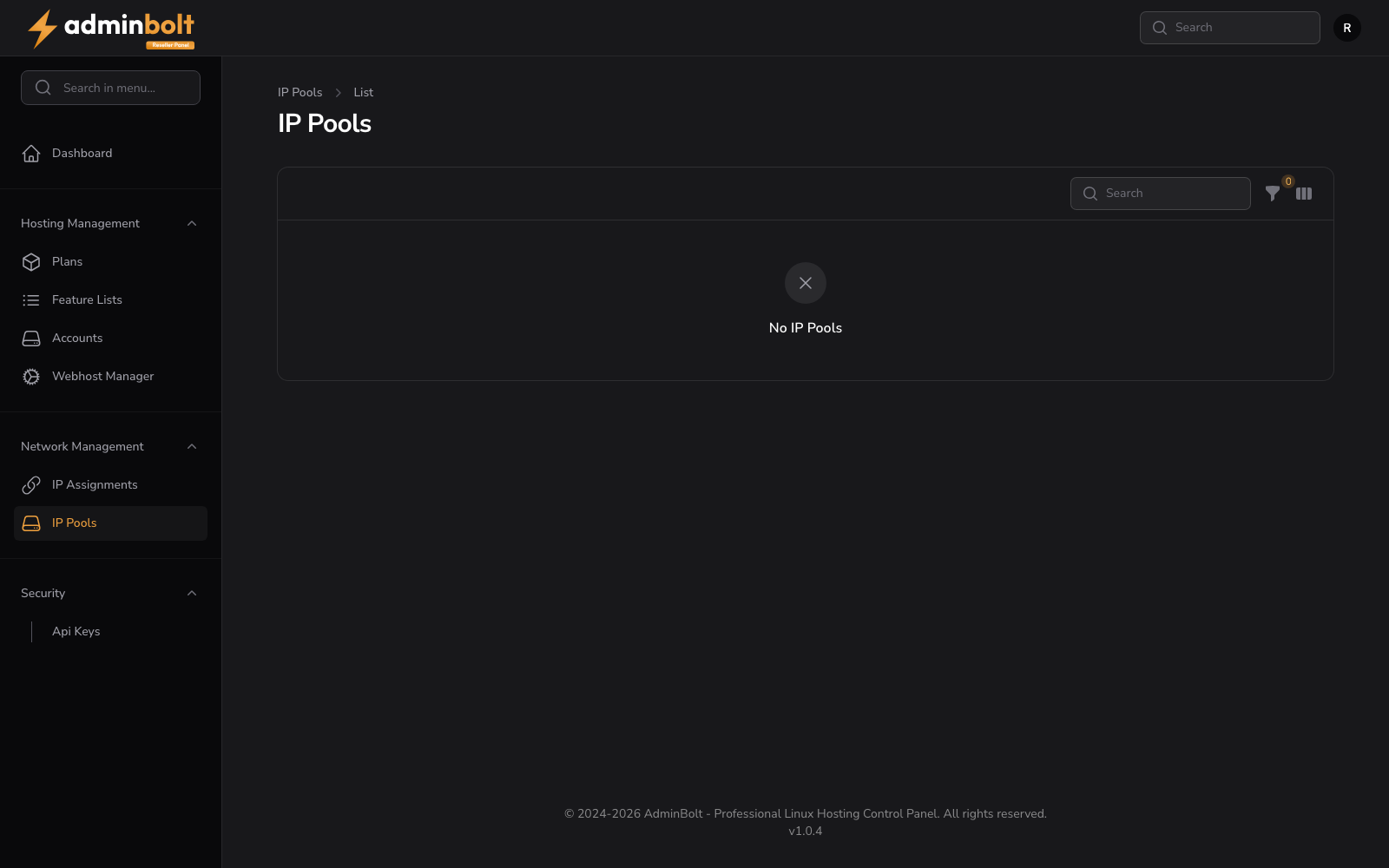
The IP Pools page shows the pool of IP addresses available to the reseller for assignment to hosting accounts.
Overview
URL: /reseller/network-ips
The page header reads: "IP Pools" with a breadcrumb "IP Pools > List".
IP addresses are allocated to a reseller account by the administrator. The reseller can view and manage them but cannot create new IPs.
IP Pools Table
The table displays all IP addresses in the reseller's pool. Available columns:
- IP Address - The IP address
- Type - IPv4 or IPv6
- Active - Whether the IP is currently active
- Actions - Available actions for the IP
Optional columns (via Toggle columns): Updated.
Search and Filter
A search bar filters IPs. Click the Filter button to apply advanced filters:
- IP Type - Filter by IP type (All, IPv4, IPv6).
- Active - Filter by active status (All, Active only, Inactive only).
A Reset button clears all filters.
Toggle Columns
Click the Toggle columns button to show or hide optional columns: Updated.
Empty State
When no IPs are allocated to the reseller account, the page shows "No IP Pools".