

Certificates – AdminBolt Hosting Panel
Overview
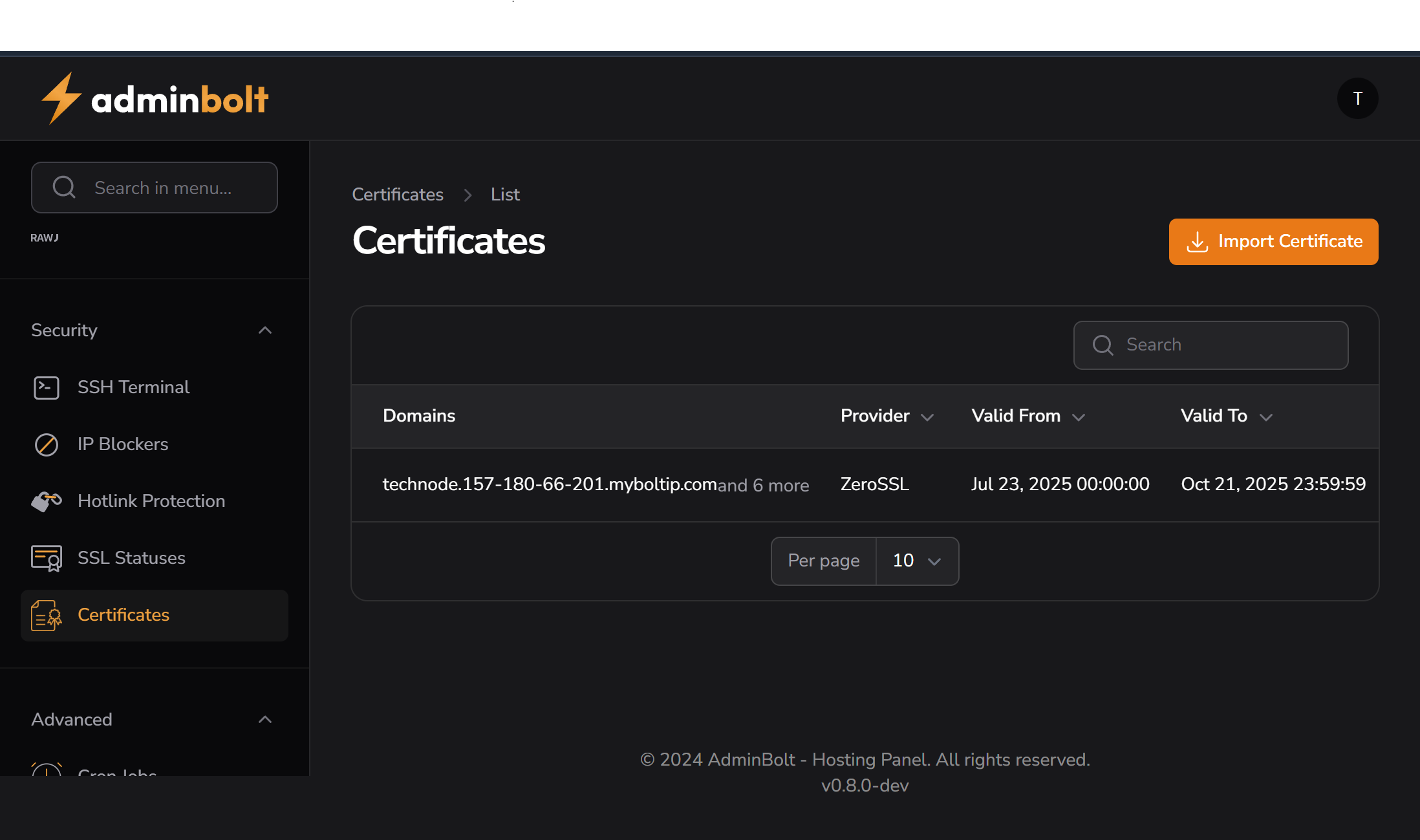
The Certificates section displays all SSL certificates currently installed on the server and their associated domain names. It allows administrators to view certificate details, expiration dates, and import new certificates manually.
Key Features
- View all installed SSL certificates
- Check certificate provider, validity period, and affected domains
- Import new SSL certificates manually (useful for custom or wildcard certificates)
Interface Elements
| Element | Description |
|---|---|
| Domains | Lists the primary domain and indicates the number of additional domains |
| Provider | The issuing certificate authority (e.g., ZeroSSL, Let's Encrypt, etc.) |
| Valid From | The date the certificate becomes active |
| Valid To | The expiration date of the certificate |
| Import Certificate | Upload your own SSL certificate manually via a user-friendly button |
Certificate Example
| Field | Value |
|---|---|
| Domain | mydomain.com |
| Provider | ZeroSSL |
| Valid From | July 23, 2025 00:00:00 |
| Valid To | October 21, 2025 23:59:59 |
| Other Domains | +6 more (typically includes www, mail, etc.) |
Importing a Certificate
To manually install a certificate:
- Click the Import Certificate button.
- Upload the required files:
.crt(certificate).key(private key)- Intermediate CA bundle if needed
- Assign it to the appropriate domain.
Best Practice: Use this feature only if AutoSSL or Let's Encrypt cannot be used.
Best Practices
- Monitor expiry dates regularly to avoid HTTPS outages.
- Use AutoSSL for most standard websites.
- Import manually only when needed (wildcard, EV, or third-party certs).
- Always verify that all subdomains are covered.