

Network IPs
Network IPs is the pool of addresses the panel knows about. An address has to be here before it can be assigned to a hosting account or a reseller, used for SSL, or handed to a service.
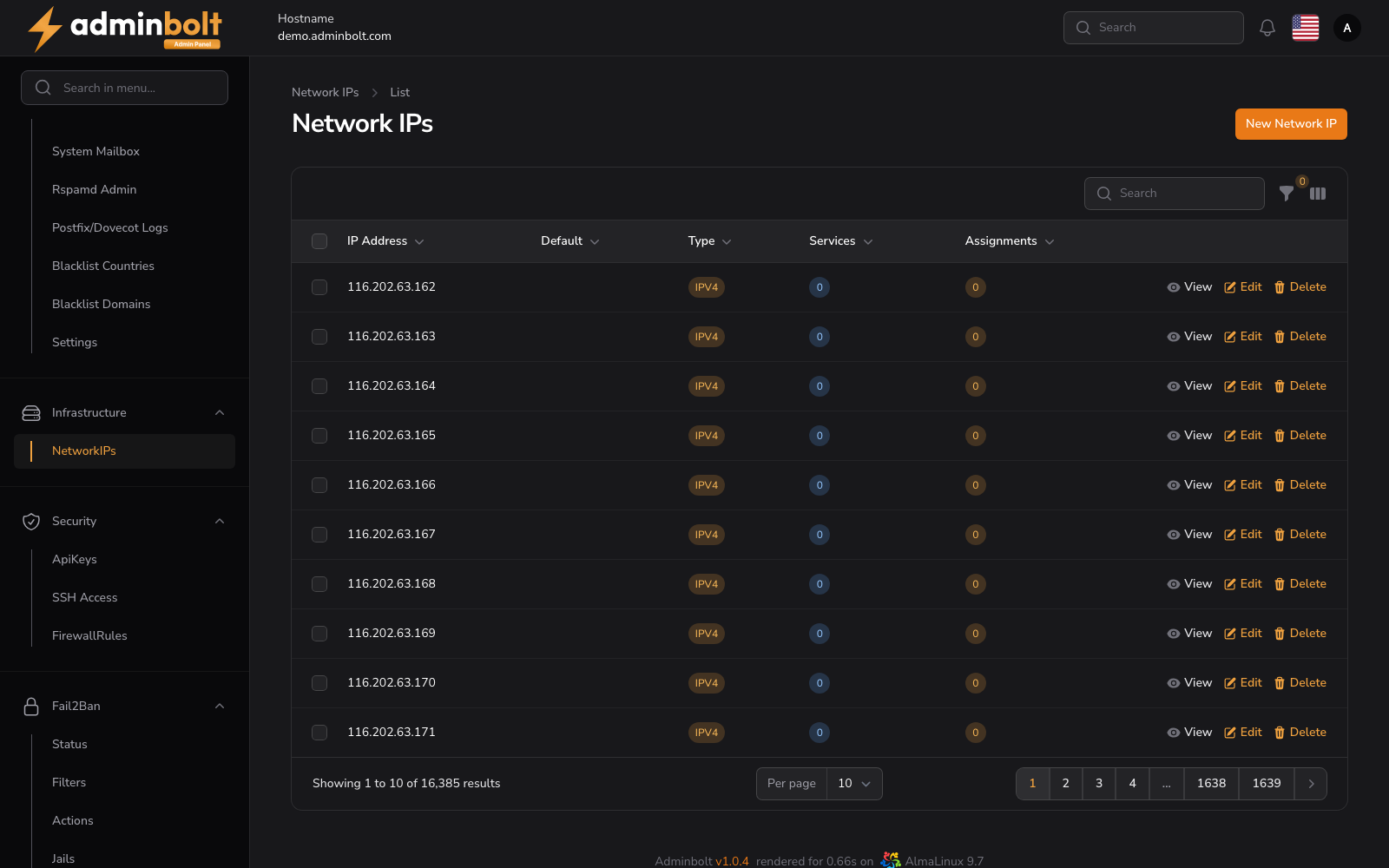
Overview
URL: /admin/settings/network-ips
Open it from Settings > Infrastructure > Network IPs in the sidebar. The entry carries a counter showing how many addresses are registered.
Note: For the end-to-end procedure of giving one hosting account its own address, including how to apply the change, see Dedicated IP for a Hosting Account.
The address list
| Column | Meaning |
|---|---|
| IP Address | The address itself (sortable). |
| Default | Marks the default system address (sortable). |
| Type | IPV4 or IPV6, shown as a badge (sortable). |
| Services | How many services use this address (sortable). |
| Assignments | How many hosting accounts or resellers it is assigned to (sortable). |
Row actions are View and Edit. The search box filters by address, the IP Type filter narrows the list to All, IPv4, or IPv6, and Toggle columns adds Created and Updated. The page size can be set to 5, 10, 25, 50, or All.
Rows can be selected for Bulk actions, which offers Delete selected.
Adding an address
New Network IP opens Create Network IP at /admin/settings/network-ips/create.
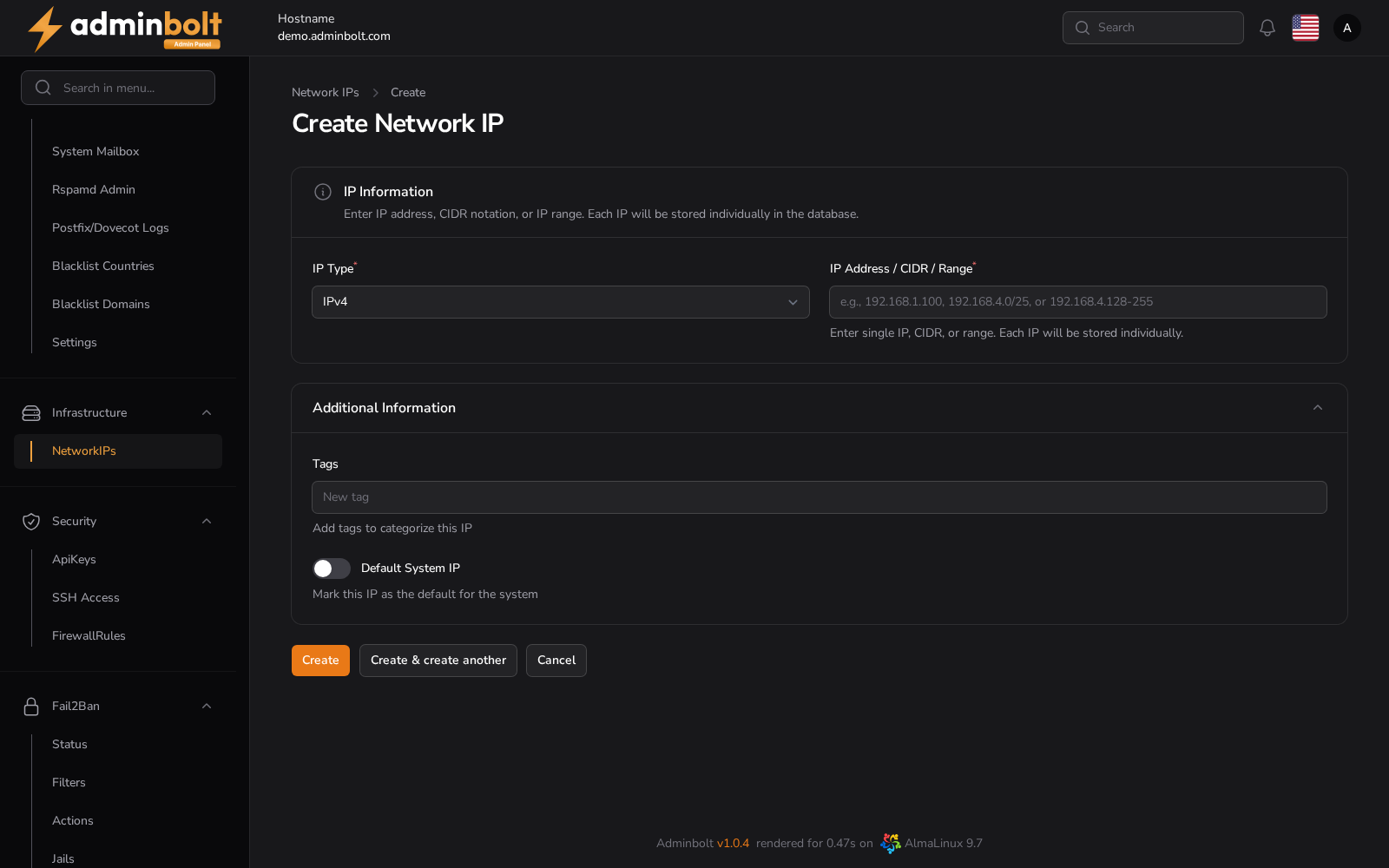
IP Information
- IP Type (required) - IPv4 or IPv6.
- IP Address / CIDR / Range (required) - a single address, a CIDR block, or a range. Each address is stored individually, so
192.0.2.0/29becomes eight rows rather than one.
Additional Information
- Tags - free-text labels for grouping addresses.
- Default System IP - marks this address as the server default.
Create saves the address, Create & create another reopens the form, and Cancel returns to the list.
Editing an address
Edit on a row opens /admin/settings/network-ips/{id}/edit. IP Type is read-only there, and IP Address carries the note "IP address cannot be changed after creation". Tags and Default System IP stay editable, and the header holds View and Delete. The default system address cannot be deleted.
Two tabs sit below the form:
- Service Connections - the services that use this address.
- Resource Assignments - the hosting accounts and resellers it is assigned to.
Resource Assignments
The Resource Assignments tab lists every assignment of this address, with the columns Resource Type, Resource, and Notes. Assigned and Updated are available through Toggle columns. Rows can be filtered by Resource Type.
New Assignment creates one:
- Resource Type (required) - Hosting Account or Reseller.
- Resource (required) - a searchable list of accounts (shown as
username (domain)) or resellers (shown asusername (name)). - Notes - optional free text.
Existing rows offer Edit and Delete, and Bulk actions with Delete selected.
Assigning an address here is what makes it the account's dedicated IP. The account's sites then answer on that address, and the {{DELEGATED_IP}} placeholder in DNS Templates resolves to it. Neither takes effect until the change is applied, so follow Dedicated IP for a Hosting Account for the full procedure.