

AdminBolt – Email Accounts Overview
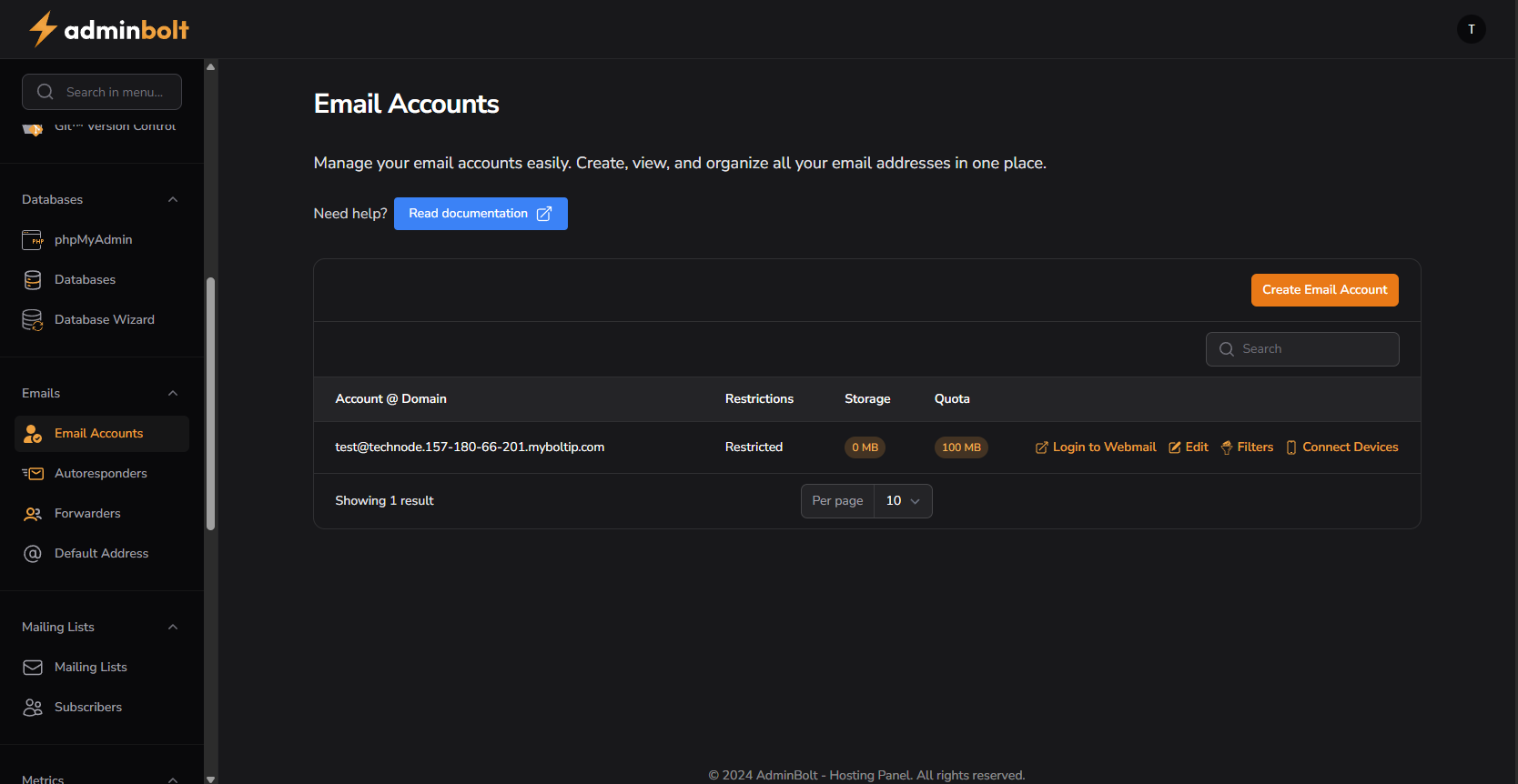
This document provides an in-depth overview of the Email Accounts section in the AdminBolt hosting panel.
Sidebar Context
Under the Emails category in the sidebar, the following sections are visible:
Email Accounts– The active section for managing email inboxes.Autoresponders– Set automatic replies.Forwarders– Redirect emails to other addresses.Default Address– Catch-all email configuration.
Additional:
Mailing ListsandSubscribersare also listed below for managing bulk communications.
Email Accounts Panel
This panel allows you to view and manage all email addresses associated with your domain.
Table Overview
| Account @ Domain | Restrictions | Storage | Quota | Actions |
|---|---|---|---|---|
| [email protected] | Restricted | 0 MB | 100 MB | 📨 Login to Webmail ✏️ Edit ⚙️ Filters 📱 Connect Devices |
🔧 Actions Description:
- Login to Webmail – Direct access to the webmail interface for this address.
- Edit – Modify email settings (e.g., password, quota, etc.).
- Filters – Manage filtering rules for spam, forwarding, or automated organization.
- Connect Devices – Provides instructions/configs for IMAP, SMTP, POP.
Create Email Account
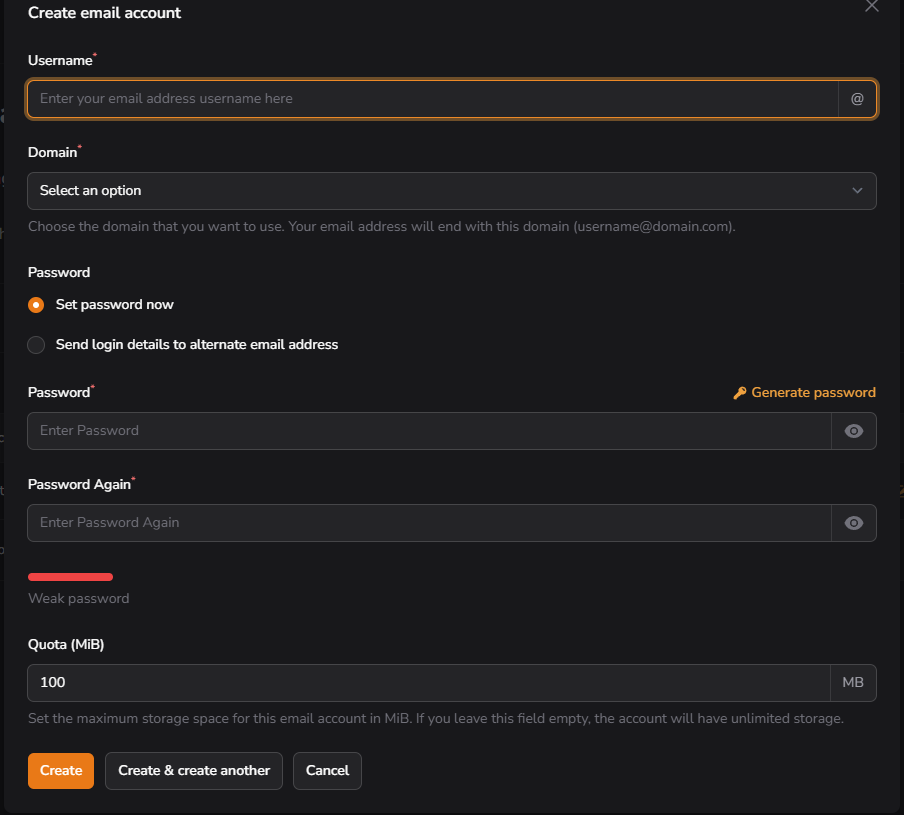
Clicking the Create Email Account button opens a modal form with the following fields:
Account Details
- Username – The first part of the email address (e.g.,
test@). - Domain – Dropdown selector to choose the domain (e.g.,
mydomain.com).
Password Options
- Set Password Now – Manually define a password.
- Send Login Details – Option to email credentials to another address.
Password fields include:
PasswordPassword Again– Confirm password- Generate password tool for auto-creation.
- Visual indicator of password strength.
Quota
- Quota (MiB) – Defines maximum storage in megabytes (MB).
If left blank, storage is unlimited.
Buttons
Create– Save and close form.Create & Create Another– Save current account and keep form open for the next one.Cancel– Close form without saving.
Search and Pagination
- Search Bar – Helps filter email accounts by address.
- Per Page Dropdown – Allows you to define the number of records shown.
- Example:
Showing 1 resultis currently displayed in the footer.
Account Restrictions
- The "Restricted" label indicates the email account may have:
- Limited login access
- Sending/receiving restrictions
- Disabled services (e.g., SMTP)
These can typically be configured during account creation or editing.
Summary
The Email Accounts section provides full control over individual mailboxes under your domain. It offers:
- Creation and management of addresses
- Real-time usage monitoring (storage/quota)
- Access to essential actions like login, filtering, and device setup
- A clean and efficient UI for hosting administrators and end-users alike
The Create Email Account dialog further supports easy provisioning with advanced password and quota controls, making it simple to manage mail at scale.