

Settings
The Settings page in adminbolt provides a centralized interface to configure global branding, system-level content pages, and background process settings.
URL: /admin/general-settings
General
Customize the appearance and organizational information for your adminbolt instance.
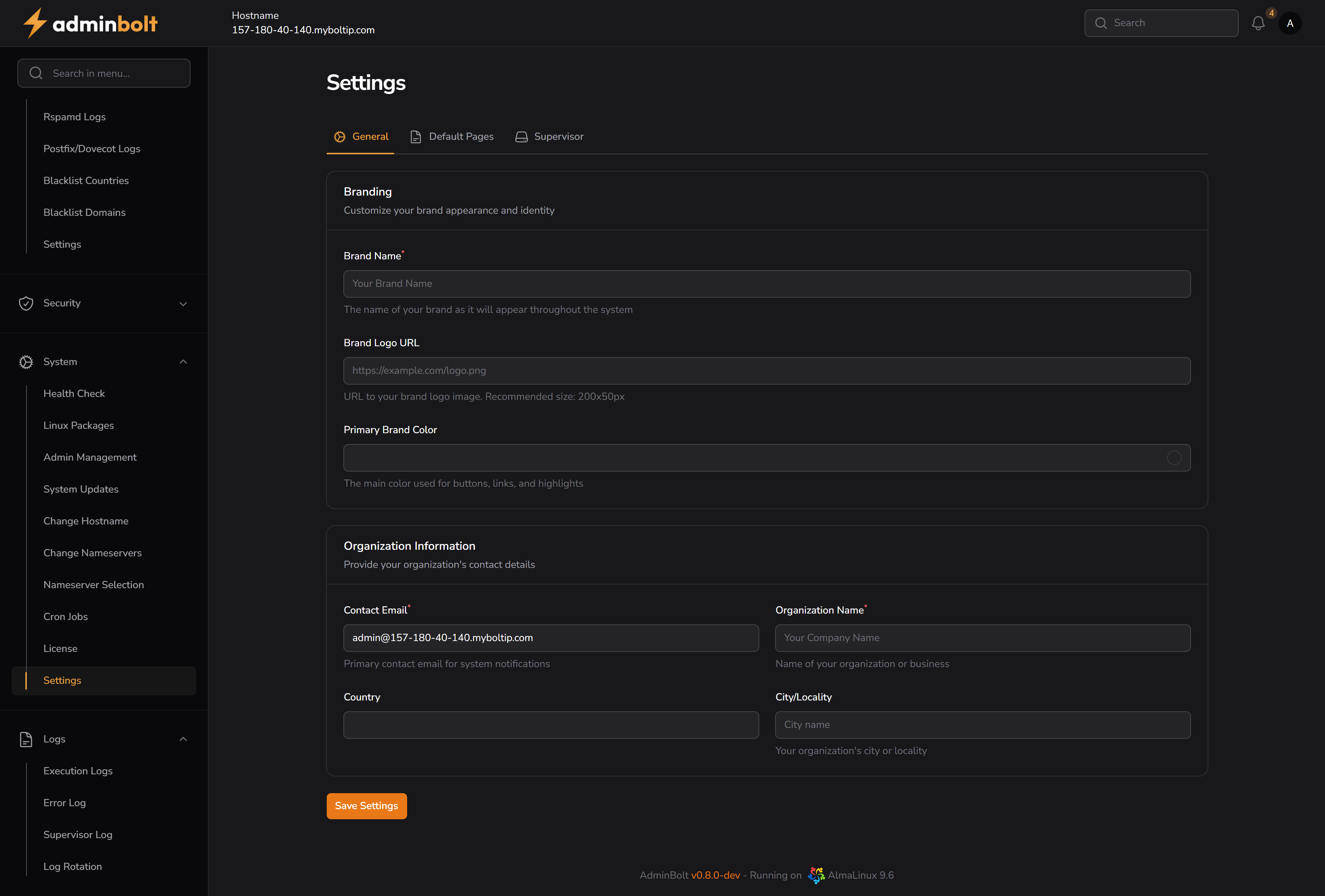
Branding
This section lets you define how your brand appears across the interface.
- Brand Name – Sets the name of your brand, shown throughout the system.
- Brand Logo URL – Link to your logo image. Recommended size:
200x50px. - Primary Brand Color – Choose a primary color used for buttons, highlights, and links.
Organization Information
Set the contact details for your organization.
- Contact Email – Primary email for system alerts and notifications.
- Organization Name – The official name of your business or entity.
- Country – Your organization's country.
- City/Locality – Optional: specify the city or locality.
After making changes, click Save Settings to apply them.
Default Pages
Define custom HTML content that will be shown for system-generated web server pages.
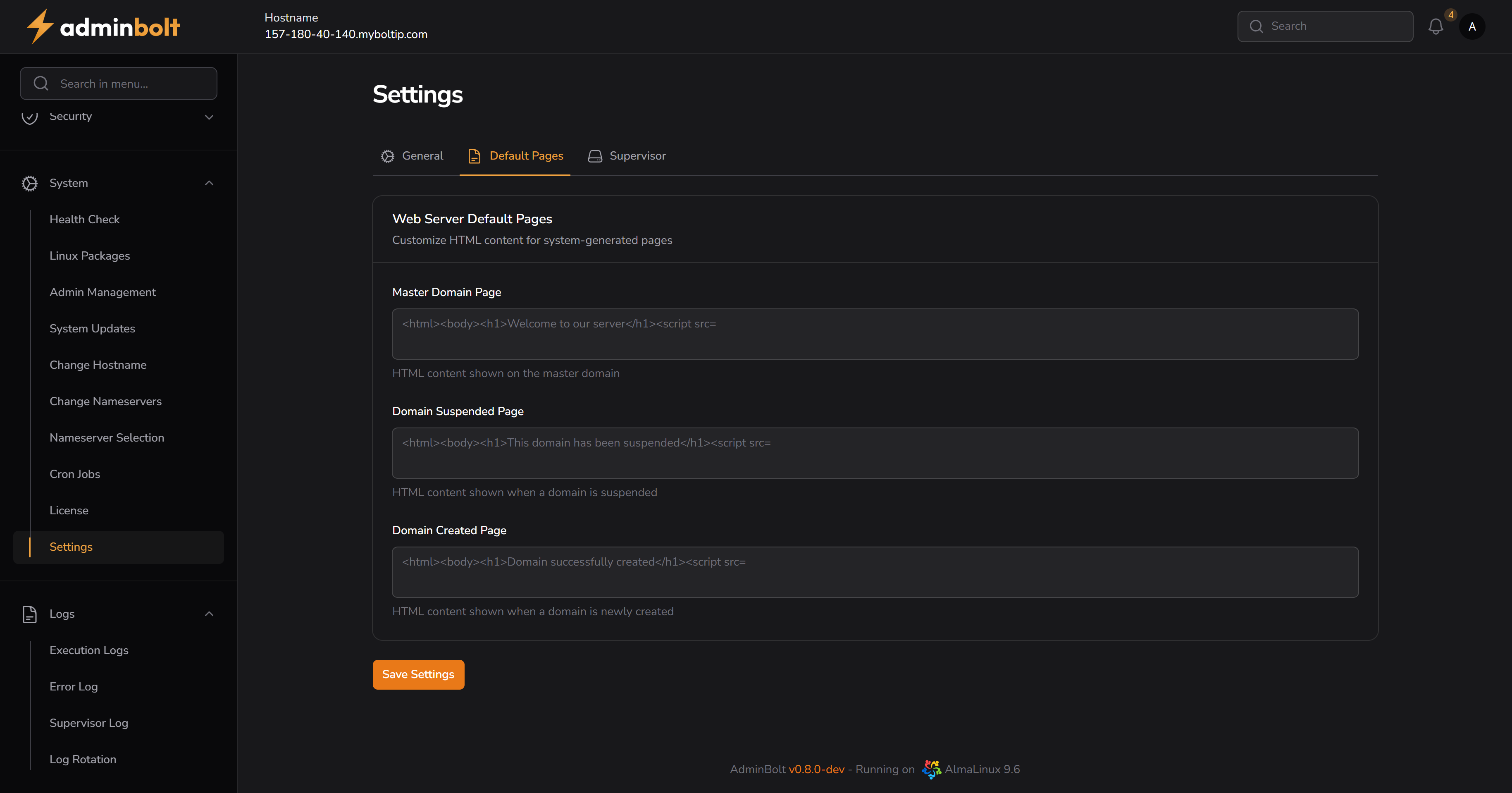
Master Domain Page
HTML content shown on the primary (master) domain.
Domain Suspended Page
HTML shown when a domain is suspended.
Domain Created Page
HTML displayed after a new domain is successfully provisioned.
These pages support raw HTML (including
<body>,<h1>,<script>, etc.) and can be used to reflect your branding or legal messaging.
After editing, click Save Settings.
Supervisor
Manage background worker processes responsible for queued jobs and other system-level automation.
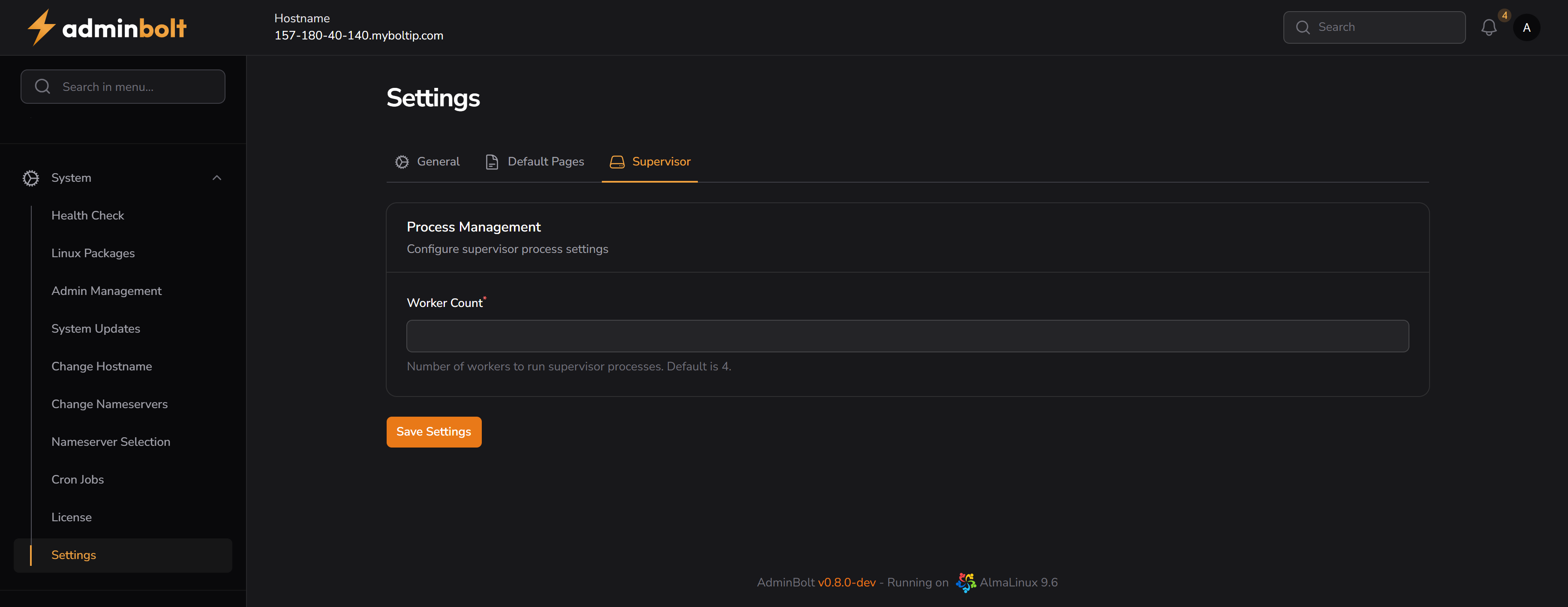
Worker Count
- Specifies the number of supervisor workers to spawn.
- Default is
4. - Increasing this may boost performance for heavy queue loads but requires more server resources.
Click Save Settings to apply changes.